Battle Talent Dedicated Server
A downloadable tool for Windows
Battle Talent Dedicated Server
You can host a dedicated server on your PC, allowing you and other players to enjoy the game together with minimal lag. Please follow the instructions below or watch the video tutorial on the right for reference. If you have any questions, you can ask for help in the discord.
Option 1, Easiest way (no need to set anything up)
- Open
BTDedicatedServerWinfolder on your PC- If you don't have the Steam version on your PC: Click here -> Click “Download Now” at the top of the page -> Right-click to unzip after downloading -> Open
BTDedicatedServerWinfolder - If you already have the Steam version: Go to Steam Library -> Right-click on Battle Talent -> Select “Manage” -> “Browse Local Files” -> Open
BTDedicatedServerWinfolder
- If you don't have the Steam version on your PC: Click here -> Click “Download Now” at the top of the page -> Right-click to unzip after downloading -> Open
- Connect your PC to the Internet via a cell phone hotspot
- You can also use your broadband connection, but there are prerequisites for IPv6 support. You will need to refer to Option 2 below. Mobile hotspots typically support IPv6
- The data usage of Dedicated Server running on a PC hotspot connection is approximately 3-5 MB per minute, which may fluctuate slightly depending on the number of players in the room. Please note that before using a PC hotspot connection, check to see if other applications are running on your PC to avoid other applications consuming data
- Double click
DSStartup.exe-> Click “StartDS”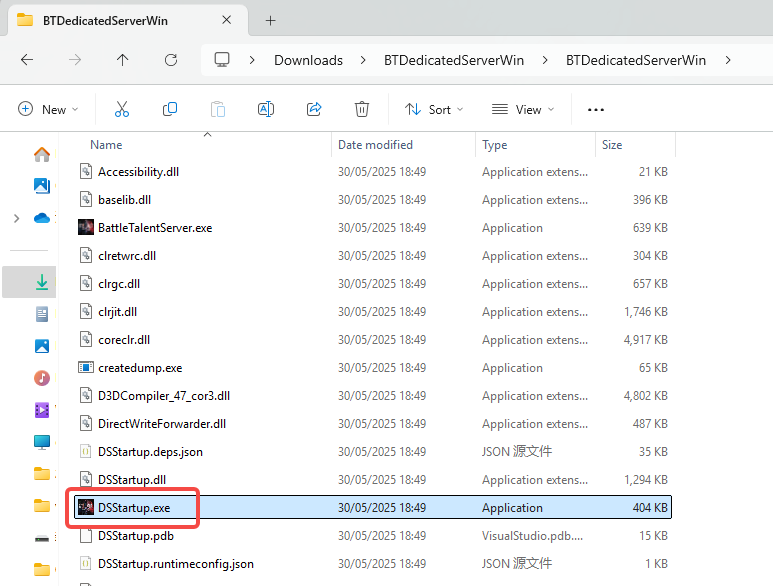
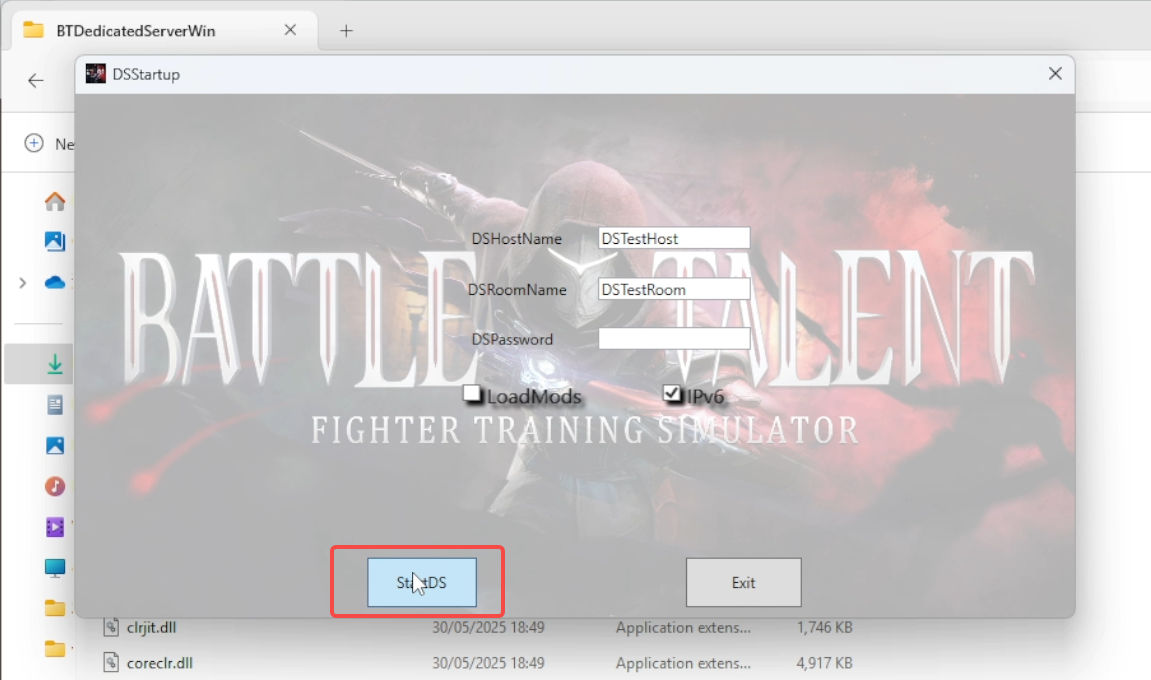
- A Windows Security pop-up window should appear when you start it for the first time, please allow public and private networks to access
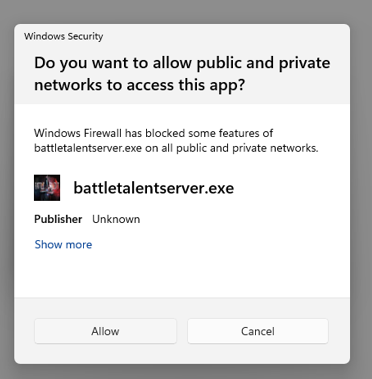
- If no pop-up appears or not allowed, you will need to manually disable the firewall. Please refer to Known Issues - 4 at the bottom of this page.
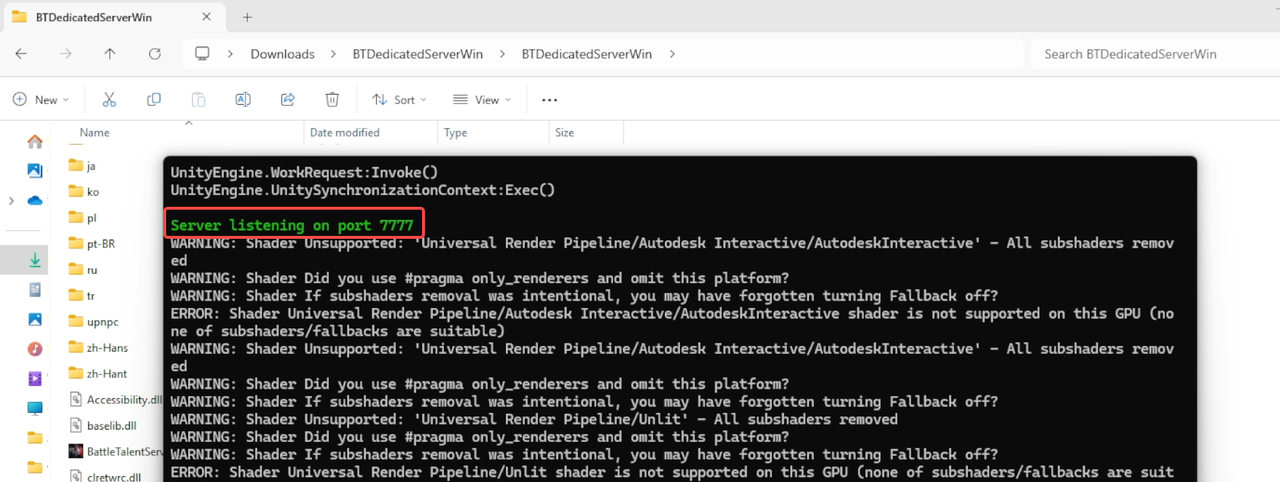
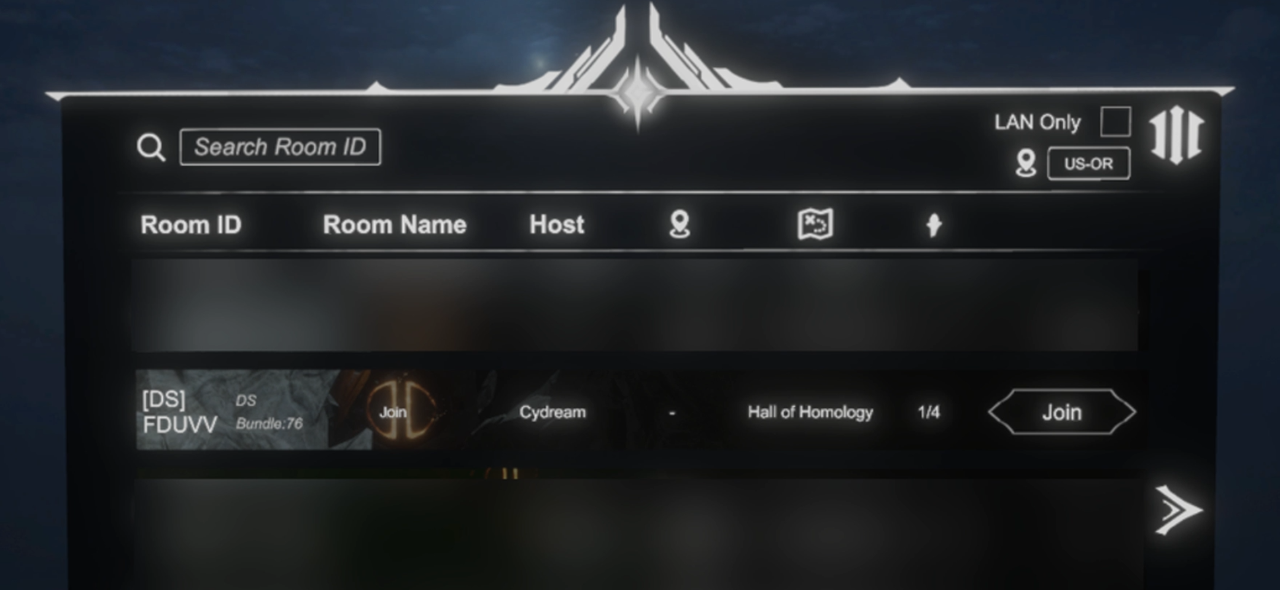
- Console will show green tips "server listening on port 7777", deploy succeed.Every single game client may see your DSRoom on NetworkRoomList
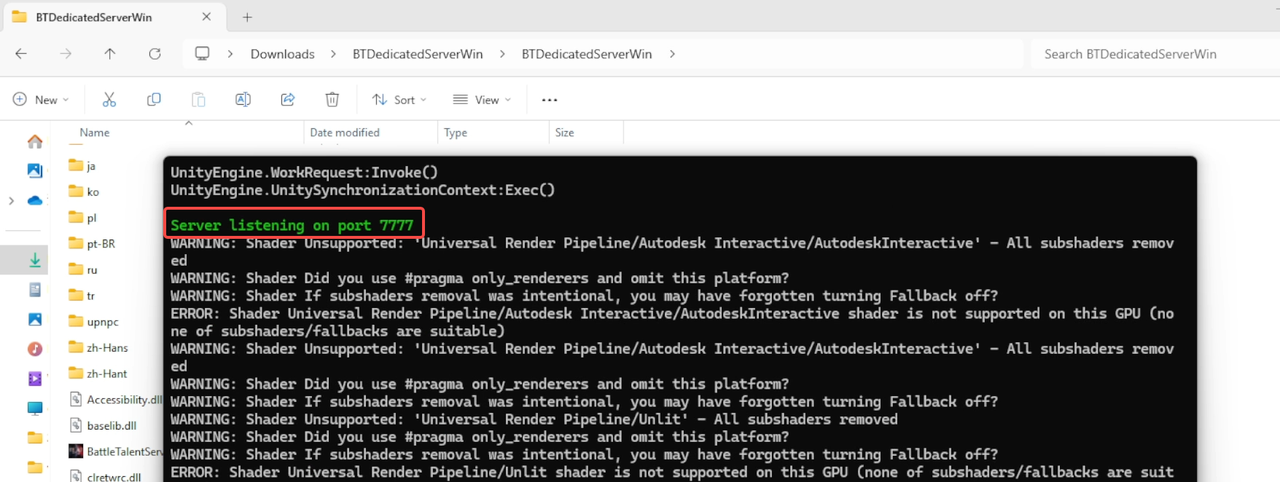

- If console shows "Please verify that the port is not already in use by another process". Please refer to Known Issues - 5 at the bottom of this page
- A Windows Security pop-up window should appear when you start it for the first time, please allow public and private networks to access
Please note: Players joining the room also need to use a network that supports IPv6 to connect. Mobile hotspots typically support this
Option 2, More stable and smooth connection way
You can use your broadband connection but need to fulfill both of the following prerequisites. Please check them first
If you encounter any problems, we recommend using the previous option
Prerequisite 1: Your network supports IPv6
- Click https://test-ipv6.com/ to confirm the connection status, make sure that the IPv6 address is obtained as shown in the picture
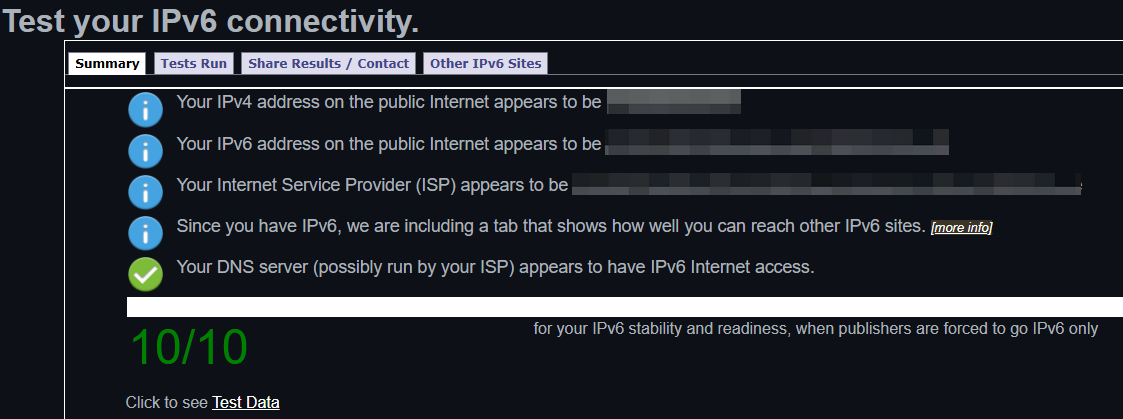
- If it doesn't work, please contact your Internet Service Provider for help. Or check Known Issues - 2
Prerequisite 2: You can enter your router's setup webpage
- The setup web address is usually in the format of “192.168.x.x”, which can be obtained by checking the sticker on the router/searching the router model number.
- You can check the sticker on the router/search for the router model number to get the default username and password of the setup webpage, or contact Internet Service Provider to get it.
Steps:
- Open
BTDedicatedServerWinfolder on your PC- If you don't have the Steam version on your PC: Click here -> Click “Download Now” at the top of the page -> Right-click to unzip after downloading -> Open
BTDedicatedServerWinfolder - If you already have the Steam version: Go to Steam Library -> Right click on Battle Talent -> Select “Manage” -> “Browse Local Files” -> Open
BTDedicatedServerWinfolder
- If you don't have the Steam version on your PC: Click here -> Click “Download Now” at the top of the page -> Right-click to unzip after downloading -> Open
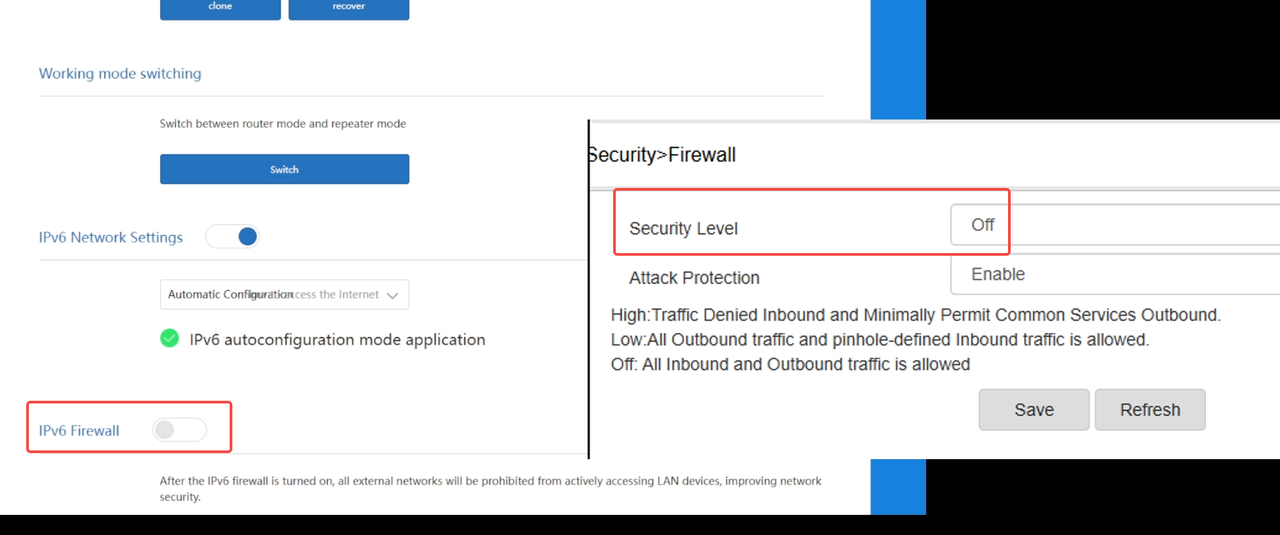
- Close the firewall in the router settings
- Enter the router's setup webpage
- Look for “Firewall” related settings in the Settings to disable Firewall.
- Usually in the “security” or “IPv6” or “network” settings page.
- You can always turn it back on afterwards.
- Double click
DSStartup.exe-> Click “StartDS”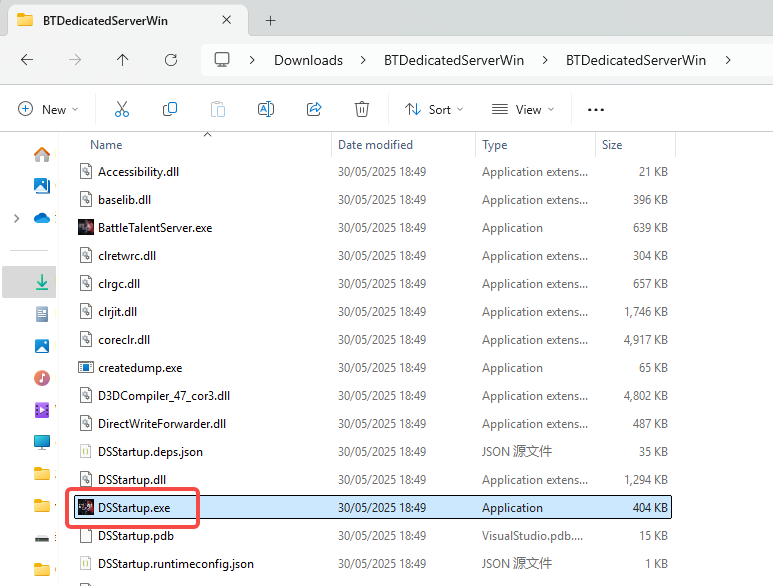
- A Windows Security pop-up window should appear when you start it for the first time, please allow public and private networks to access
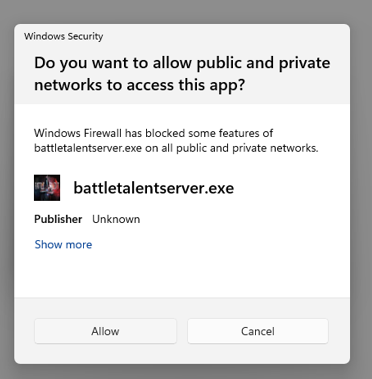
- If no pop-up appears or not allowed, you will need to manually disable the firewall. Please refer to Known Issues - 4 at the bottom of this page.
- Console will show green tips "server listening on port 7777", deploy succeed. Every single game client may see your DSRoom on NetworkRoomList
- If console shows "Please verify that the port is not already in use by another process". Please refer to Known Issues - 5 at the bottom of this page
- A Windows Security pop-up window should appear when you start it for the first time, please allow public and private networks to access
Please note: Players joining the room also need to use a network that supports IPv6 to connect. Mobile hotspots typically support this
Option 3, Deploy by using IPv4
- You will need to have a REAL Wan IPv4 address
- If you don't understand what a REAL Wan IPv4 address is, we strongly recommend using the above two options. The IPv4 option requires a certain level of network knowledge
- Close or disable firewalls on your hosting pc or server
- Open Windows Settings
- Search “Firewall” and enter Firewall settings page
- Close or disable firewalls
- or allow
.\BTDedicatedServerWin\BattleTalentServer.exepassthrough firewall
- Open UPnP protocol on your router's Http Manage Site
- Make sure port 7777 & 7778 is open on your hosting pc or server
- Double click file
.\BTDedicatedServerWin\Start DS.bat - Deploy succeed: Console will show green tips "server listening on port 7777", otherwise deploy failed, make sure Port 7777 & 7778 is not inuse
- How to check
- Cmd
netstat -awill should all ports inuse currently
- Cmd
- How to check
- Then every single game client may see your DSRoom on NetworkRoomList
Known Issues
- Other players cannot join
- If it is started with IPv6, other players need to support IPv6 as well. Please check Known Issues - 2 for other players to support IPv6 and try to connect again
- If it is started with IPv4, please check Known Issues - 3
- Unable to get IPv6 address
- The easiest way: you can use your PC to connect to the Internet via a cell phone hotspot, and then proceed to the next step.
- Contact your Internet Service Provider for help.
- If you are using VPN, better turn it off. We can't identify or solve the problems associated with it
- IPv4 related iusses
- If your router not support UPnP protocol, you may need to manual add PortMapping rules on router's Http Manage Site
- If a VPN or VPS is enabled on your local PC or router, ensure that the VPN or VPS server allows UDP 7777 and TCP 7778 traffic to pass through.
Additional Notes for Configuration:
- Firewall Rules: Check both inbound and outbound firewall settings on the VPN/VPS server to permit UDP port 7777 and TCP port 7778.
- Router Configuration: If using a router with VPN, configure port forwarding/NAT rules to route UDP 7777 and TCP 7778 traffic to the correct internal device.
- Security Considerations: Limit exposure by restricting access to trusted IP ranges if possible, and use encryption where applicable.
- If other devices on the local LAN want to connect to the Self-Hosting Dedicated Server, they need to search for LAN rooms through LAN mode. The one-click configuration of the UPnP protocol does not support NAT loopback configurations within the LAN. Alternatively, you must manually configure port forwarding rules on your router:
- External IP → Internal IP [192.168.x.x] → Protocol [UDP] → Port [7777]
- External IP → Internal IP [192.168.x.x] → Protocol [TCP] → Port [7778] Configuration Notes:
- UPnP Limitations: UPnP cannot resolve NAT loopback (local devices accessing the server via its external IP). Use LAN mode for internal connections.
- Port Forwarding: Ensure both UDP 7777 and TCP 7778 are forwarded to the server’s internal IP.
- Firewall Rules: Verify that the server’s firewall allows inbound traffic on these ports.
- If you are using VPN, better turn it off. We can't identify or solve the problems associated with it
- If you have tried all the methods mentioned above and still can not deploy Dedicated Server successfully, please restart your router and follow the steps again
- Close or disable firewalls on your hosting pc or server
- Open Windows Settings
- Search “Firewall” and enter Firewall settings page
- Close or disable firewalls
- Or allow
.\BTDedicatedServerWin\BattleTalentServer.exepassthrough firewall
- The port is already in use by another process
- Restarting your computer usually solves the problem
- Follow the instructions in this video to find the process occupying the port 7777&7778 and close it:
Download
Click download now to get access to the following files:

Leave a comment
Log in with itch.io to leave a comment.